User’s Manual
NOTICE: THIS CODE IS NOT BEING MAINTAINED AND MAY THEREFORE NOT WORK CORRECTLY ANYMORE OR THE INFORMATION MAY BE OUTDATED
This manual will descripe the steps required to start BeRoboy.
Starting Gazebo
Start the Ubuntu machine and open a terminal. See further information about starting a simulation under the point Getting Started - this includes necessary exports before a launch file is executed.
Start the launch file which starts Gazebo with the Roboy and a Camera ROS node
roslaunch roboy_simulation roboy_camera.launch
If yout want the insert/remove feature to work, also launch this in a seperate terminal, calling all pre-simulation commands again.
rosrun roboy_simulation VRRoboy
Starting Unity
- Start the unity project and set up the ROS server connection as described in Getting Started.
- Start the scene.
- After the controller assignment, you can switch between various view modes via a selection menu in the scene.

- Enjoy!
View Scenarios
You can choose between the following four view scenarios, each of them offering different things to explore!
I. Gazebo Simulation
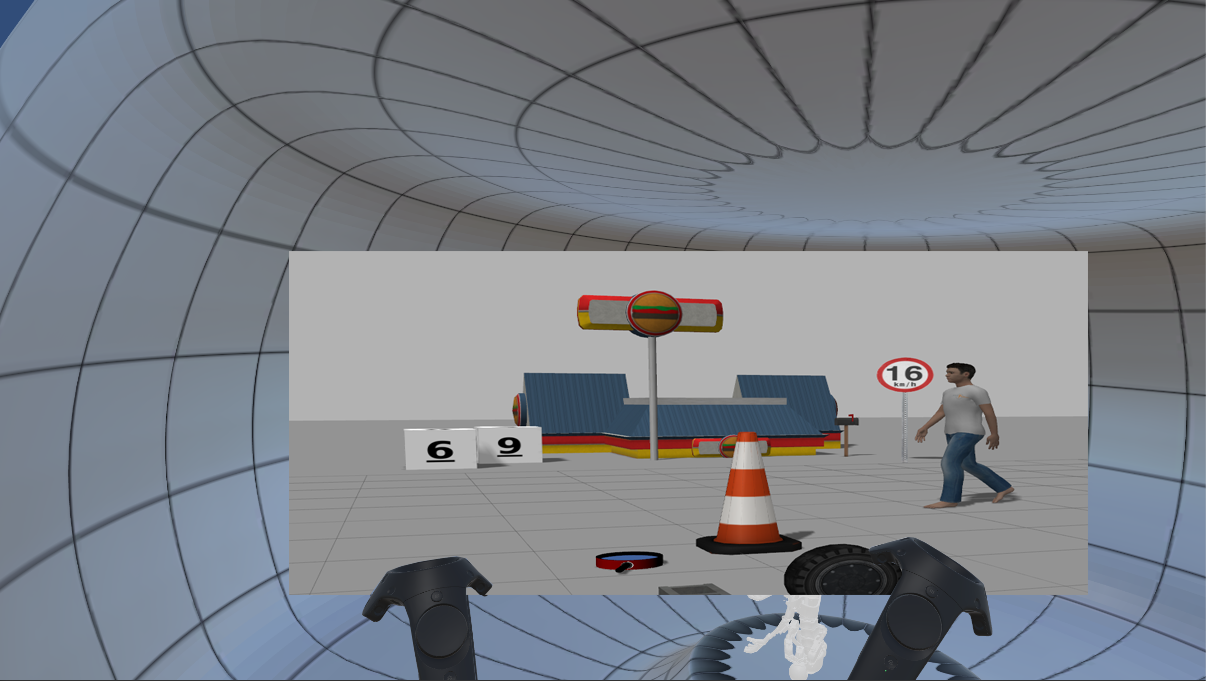
Take control over the simulation Roboy and see what he does in gazebo.
II. Real Roboy (ZED)
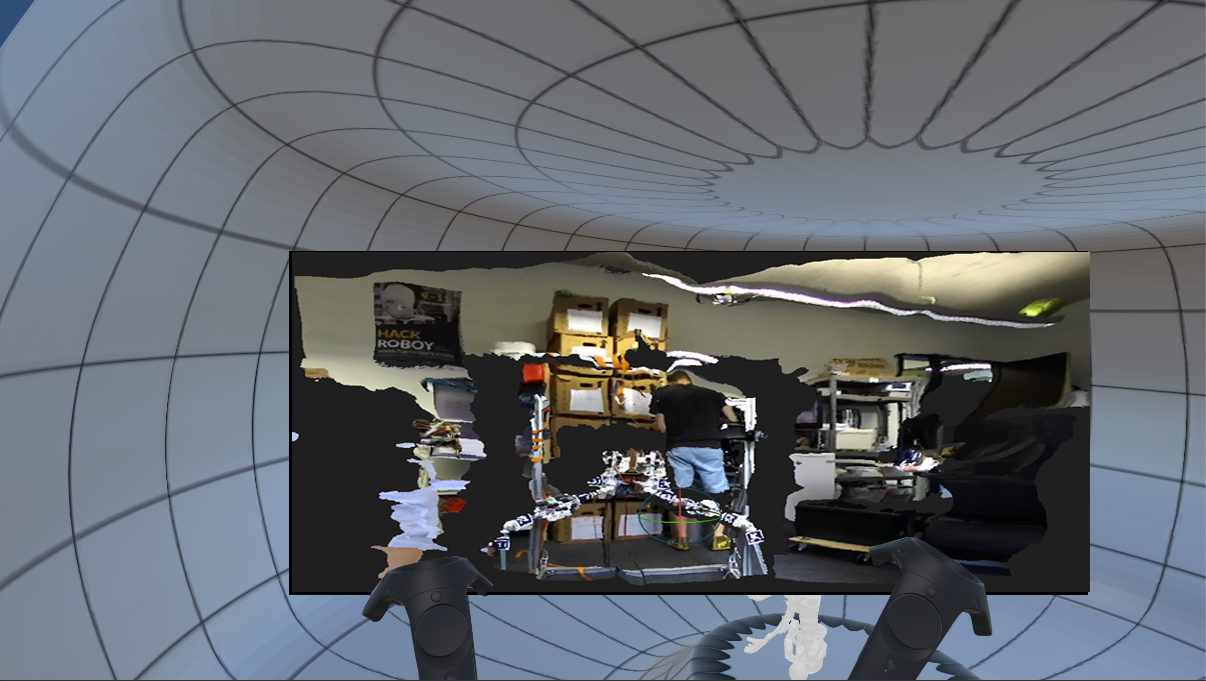
Look through the eyes of the real Roboy and control him in real life.
III. Observing Gentleman
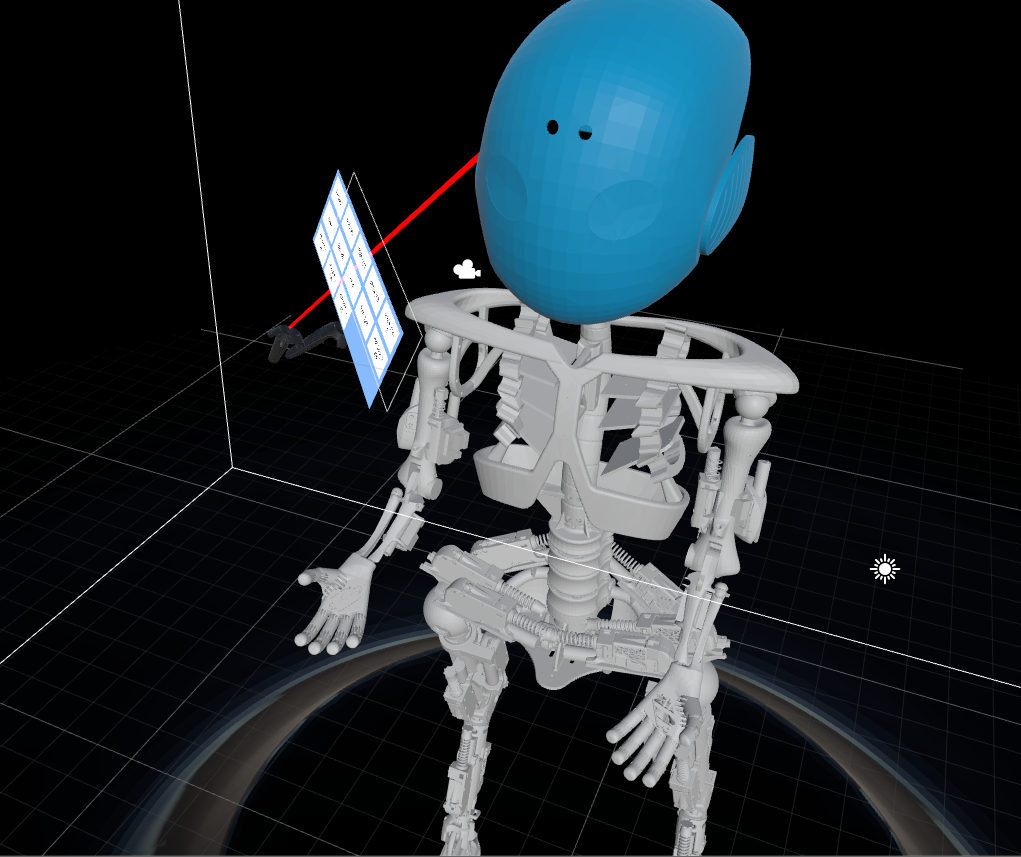
Sit back, relax, take a look at Roboy from a safe distance and watch him do some stuff.
IV. VR Roboy
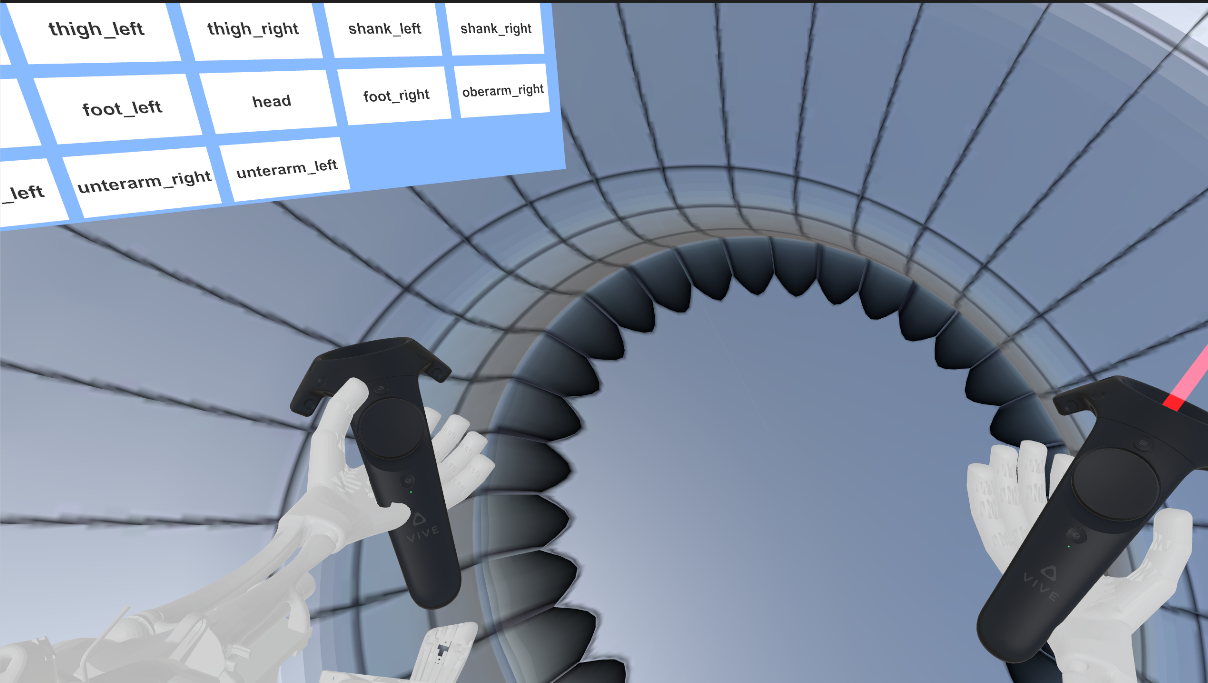
Slip into the role of the true VR Roboy, cause mayhem or look cute, you decide.